24 photos in. One video out.
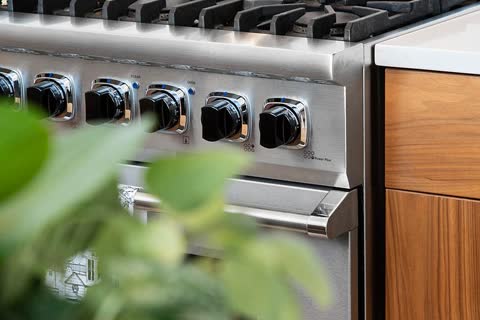
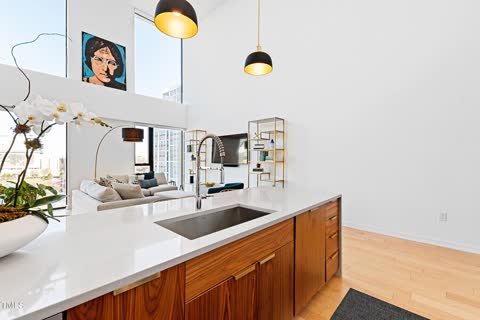
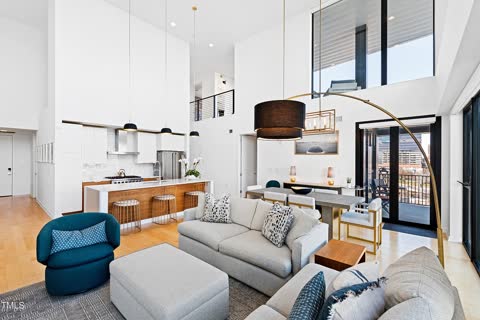
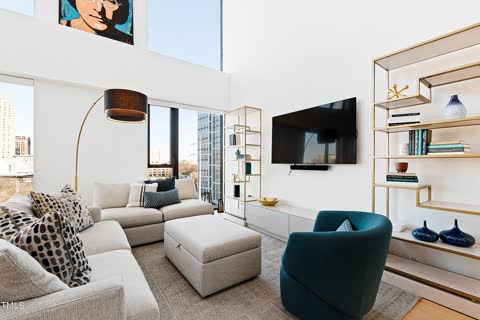
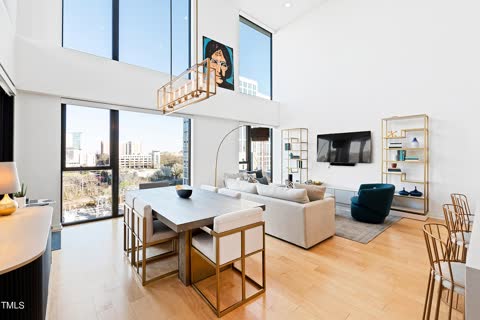
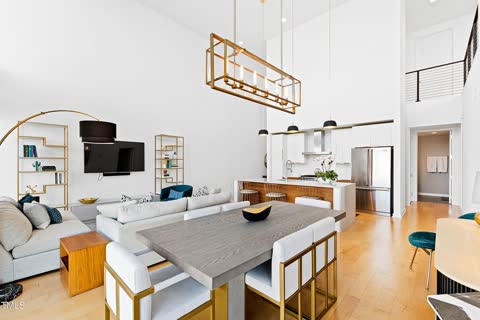
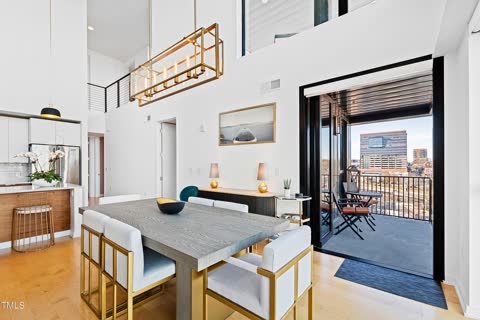
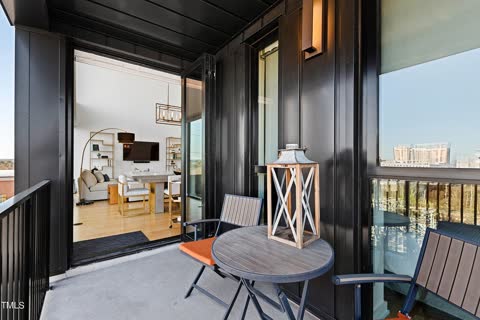
I just made a listing video for a penthouse in Raleigh. I never picked up a camera. I never opened an editing app.
I had 24 listing photos. That’s it.
Claude picked the best ones. It built every screen. It made the photos move, added the price and the features, and put a sound on every move.
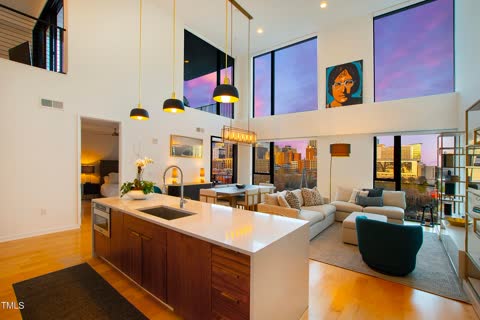

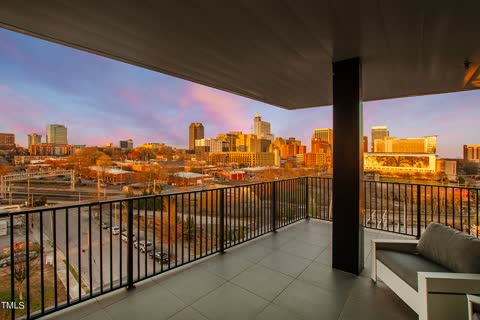
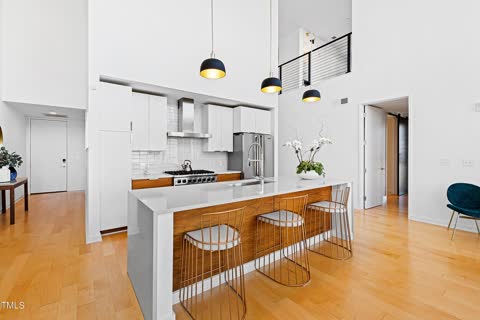
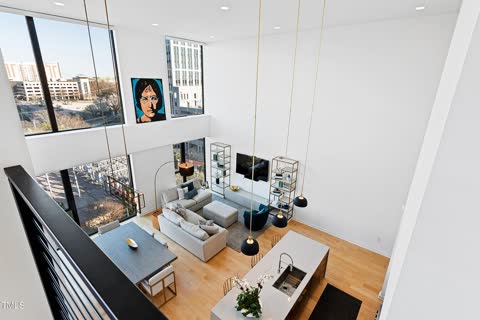
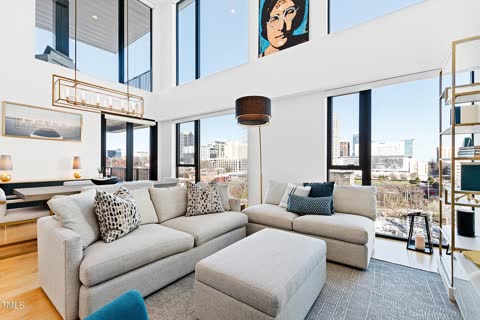
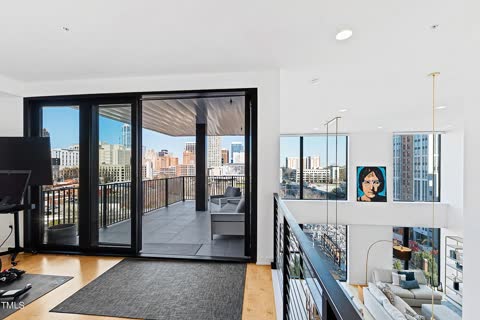
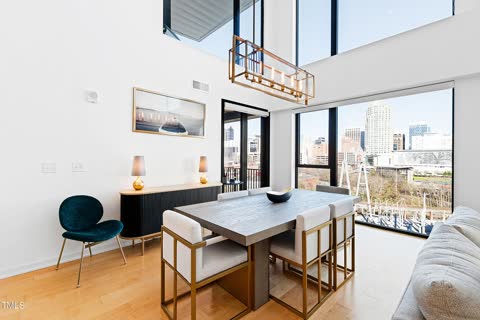
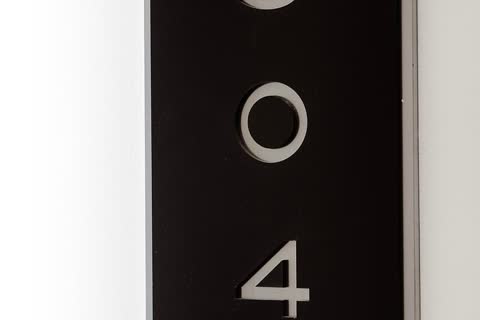
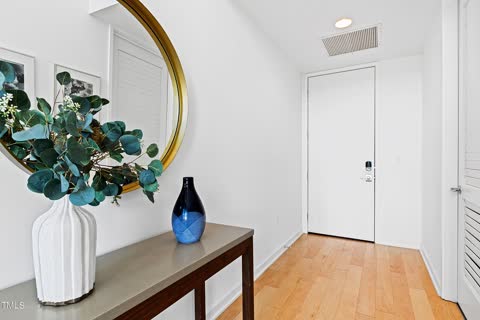
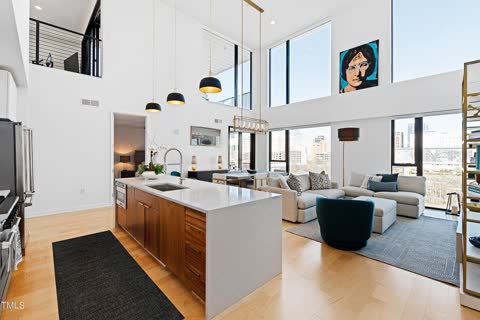

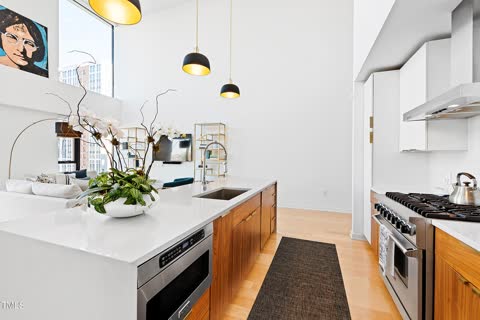
Watch the whole setup.
This video walks through all 8 steps. Claude made this video too.
- Listing photos. The ones you already paid for. I used 24.
- The Claude Desktop app, with a plan that includes Claude Code.
- Five free tools. Claude installs them for you in step 4.
- Three prompts. They are on this page. Copy, paste, done.
Do these in order.
- Step 01
Get the Claude Desktop app
Download the Claude Desktop app. Open it and click the Code tab.
Don’t use Claude in your browser for this. The app can work with files on your computer. The browser can’t.
- Step 02
Make one folder
Make a folder on your computer called AI Video Editor. Put three folders inside it.
- listing photosyour photos go here
- referencesvideos you like go here
- exportsyour finished videos land here
- Step 03
Start a local chat
Start a new chat in Claude Code. Pick Local, then pick your AI Video Editor folder.
Now Claude can see your photos and save your videos.
- Step 04
Let Claude install the five tools
Claude needs five tools to build a video. All five are free. You install nothing yourself. Paste prompt 1 and Claude does it.
- Remotionbuilds the video
- Hyperframesmakes the photos move
- FFmpegsaves the video file
- Whispertimes words to a voice
- yt-dlpsaves videos you like
( The prompt )I want to make listing videos from photos on this computer. Install these five tools for me: Remotion, Hyperframes, FFmpeg, Whisper, and yt-dlp. Do every step yourself. Do not ask me to type commands. Test each tool after you install it. Then give me a short list: each tool, what it does, and if it works. Write in plain words.
- Step 05
Show Claude your taste
Claude can build now, but it doesn’t know what you like. Find three to five listing videos you love. Paste the links into prompt 2.
One line in that prompt matters most: inspired by them, not a copy. That line keeps your video yours.
( Prompt 02 · Learn my taste )( The prompt )Here are 3 to 5 listing videos I love: [paste link 1] [paste link 2] [paste link 3] Download each one into my references folder. Study them: how long each photo stays on screen, how the photos move, the text, the colors, and the music. Write what you learn in a file called my-style.md in this folder. Make my videos inspired by them, not a copy. Keep my listing, my brand, and my name. Write in plain words.
- Step 06
Add your photos and paste the last prompt
Put your listing photos in the listing photos folder. Then paste prompt 3 with the address, the price, and the best features.
Claude picks the best photos, makes each screen move, adds the details, and shows you every screen.
( Prompt 03 · Build the listing video )( The prompt )Make a listing video from the photos in my listing photos folder. Address: [address] Price: [price] Beds, baths, square feet: [facts] Best features: [3 to 6 features] My name and brokerage: [name, brokerage] Follow my-style.md. Pick the best photos. Start with the best one. Do not make a plain slideshow. Give each screen its own motion idea: a counter, giant moving words, photos that pop out of a folder, a switch that flips. Put the address and price on the first screen. Put one feature on each screen. End with a card that shows the address, the price, and the facts. Use only the facts I gave you. Do not make up a fact. Make it 9 by 16 for Instagram, 15 to 20 seconds long. Add free sound effects: a swoosh when a screen changes, a riser before a big moment, a click on a button. Put each one on the right frame. Save the video in my exports folder. Then show me each screen for my review. Write in plain words.
- Step 07
Add sound
Sound is what makes a video feel finished.
Free sound effects are all over the web. Ask Claude to add a swoosh when a screen changes, a riser before a big moment, and a click when a button is pressed. Claude puts each one on the right frame.
- Step 08
Fix it in plain words
Want a change? Say it like you’d say it to a person. Hold the kitchen longer. Make the price bigger. Start with the skyline.
Claude fixes it and shows you again.
Don’t make a slideshow.
Photo, slow pan, next photo. That’s what most listing videos look like. People scroll right past them.
Tell Claude to give each screen its own idea. Here are six from the video I made. It runs 19 seconds and has seven screens.
 The skyline rises in strips
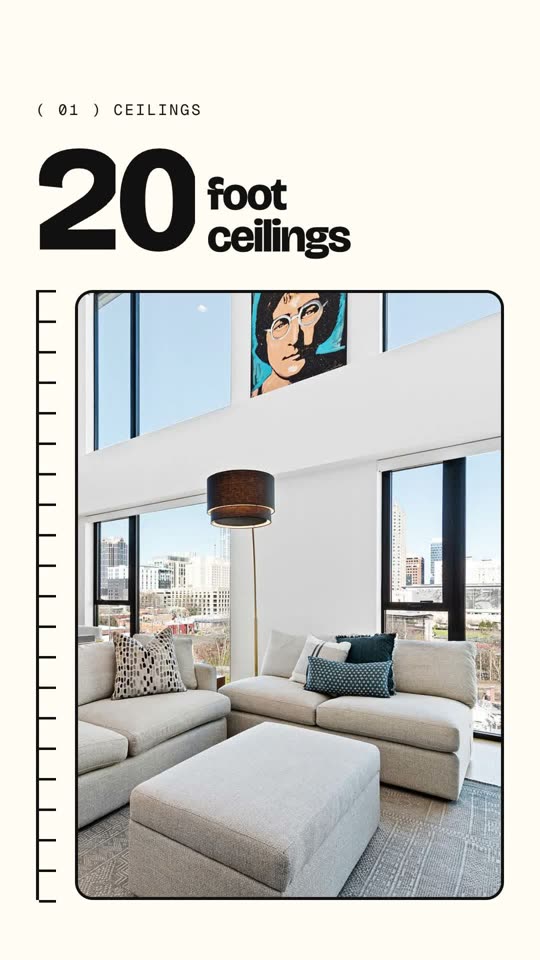 A 20 rolls up beside a measuring line
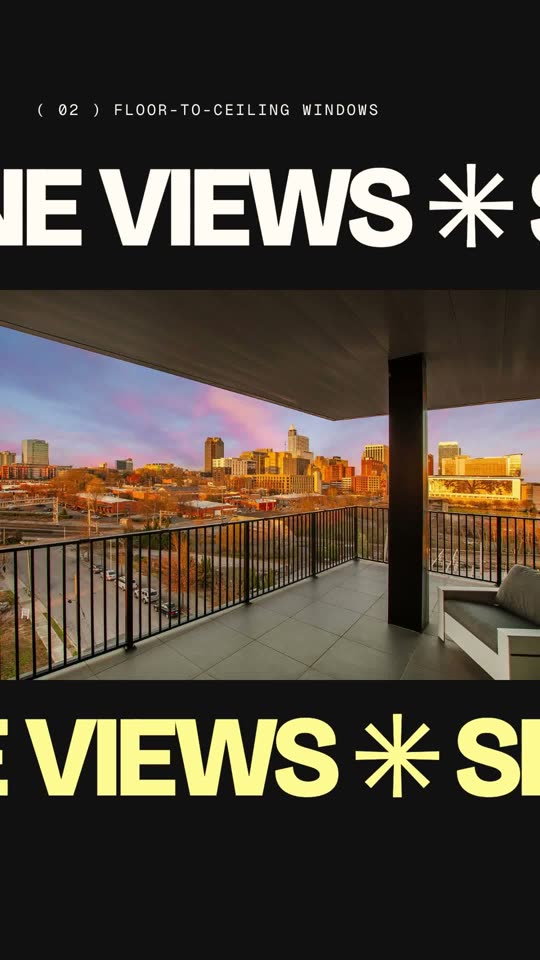 Giant words slide past the view
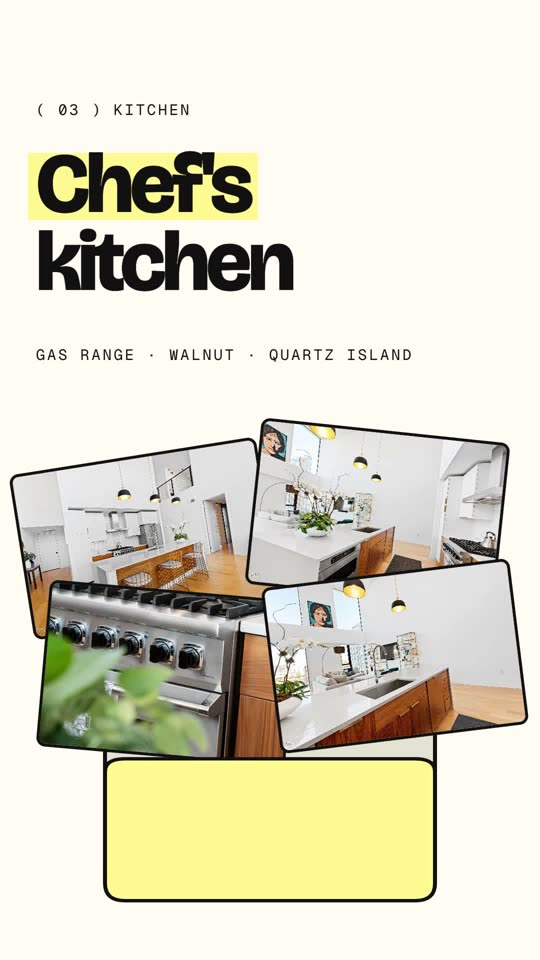 Kitchen photos pop out of a folder
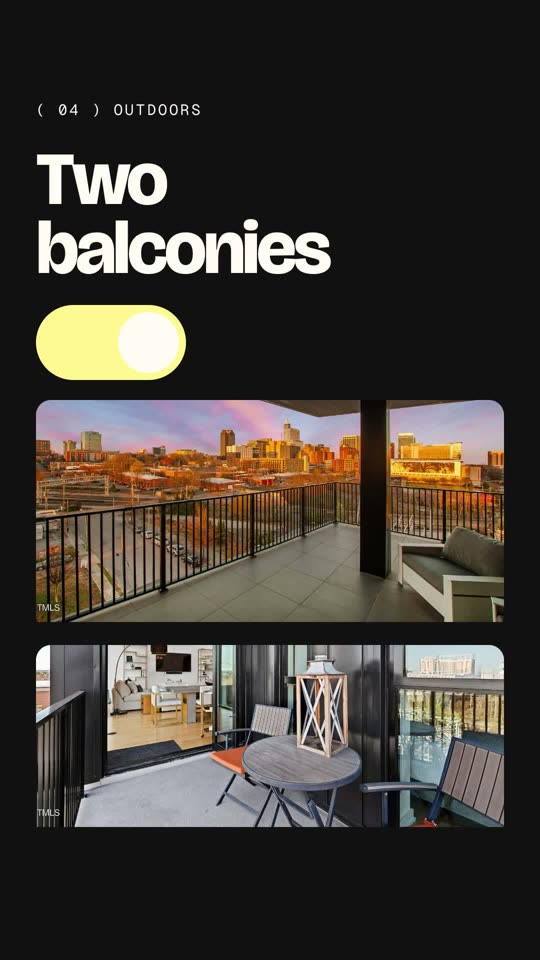 A switch flips for the two balconies
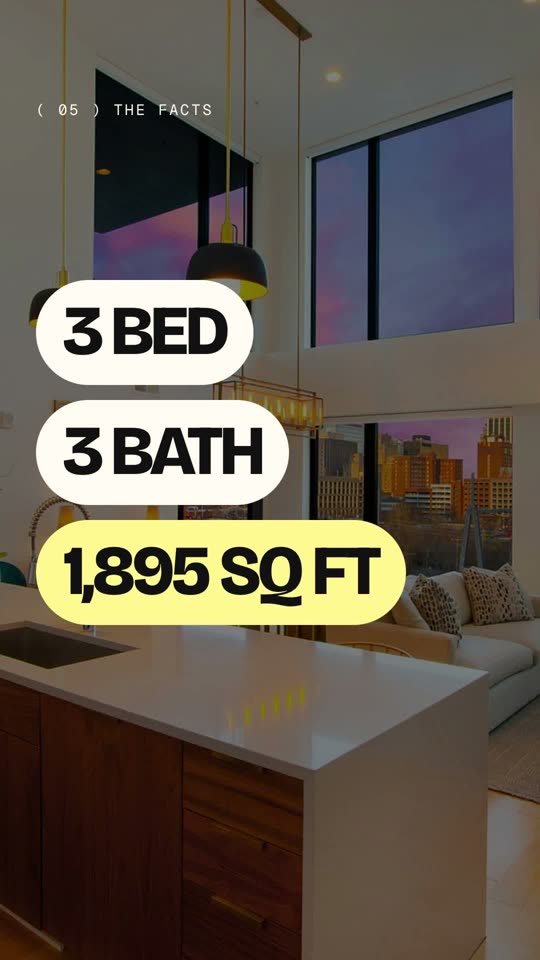 The facts stretch in
@mrcreates.ai taught us this.
He showed how to edit videos with Claude. I made it work for listings. Go watch his video and follow him. Watch his video.