
How I Built a Landing Page That Follows Up
A giveaway from Jimmy Mackin · Listing Leads
How I Built a Listing Page That Texts Its Own Leads Back
One twilight photo. One web page with one button. And when someone taps that button and texts, the page answers them. In my voice. In about ten seconds. Here is exactly how, in plain English, with every prompt you can copy, and every wrong turn so you can skip it.
5 hours to build the first time, with AI doing the typing. $0 to $20 a month, a Linq number is the only real cost. 0 forms. No email box. One tap opens a text. That is the whole ask.
What you will have when you are done
- A photo that stops the scroll. Your daytime listing photo, turned into a dusk shot with every window glowing. Part 1. Twenty minutes.
- A page that feels expensive. Full-screen photo, a live countdown, one button. No menu, no form. Part 2. One afternoon.
- A button that starts a conversation. Tap it and the phone opens a text to your number, already written. Part 3. Ten minutes for the simple version.
- The magic: the page replies by itself. Every text gets a warm, human-sounding reply within seconds, and anyone who says "yes" gets your link. Part 3 and the bonus. One afternoon with AI doing the work.
Five words, so nothing below is confusing
- Prompt. Instructions you paste into an AI tool. Every prompt in this guide sits in a labeled box. Copy it as is.
- Claude. The AI I used. Claude.ai for writing and design, Claude Code for building. Any strong AI tool works for Parts 1 and 2.
- Landing page. One web page with one job. Ours has one button.
- Linq. A service that gives you a phone number a program can text from. Works with iMessage and regular texts.
- Reply program. A small program that watches your Linq number and answers texts using Claude. You do not write it. Claude does.
Twilight photos sell. A real one costs $150 to $400 and a return trip. This takes one prompt.
Original Photo:
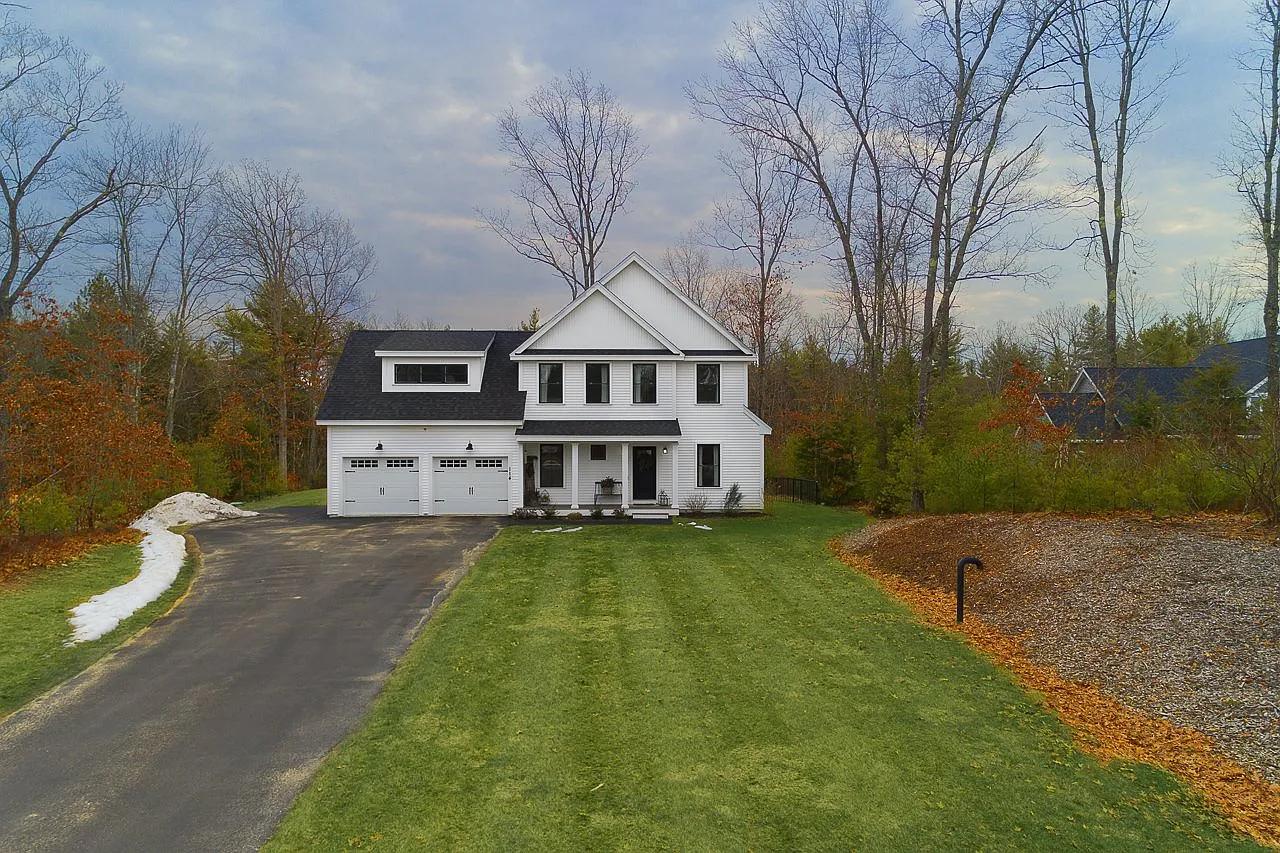
- Pick the photo. Straight on, whole house, sky above the roof, taken in daylight. The bigger the file the better.
- Paste the twilight prompt below with the photo into an AI image tool. I used Claude with an image model; Gemini, Midjourney, or Photoshop's generative fill all take the same instructions.
- Look at the windows and the lawn. Windows must be where they were. Grass must be green, not blue. If not, say "keep every window exactly where it is" and run it again.
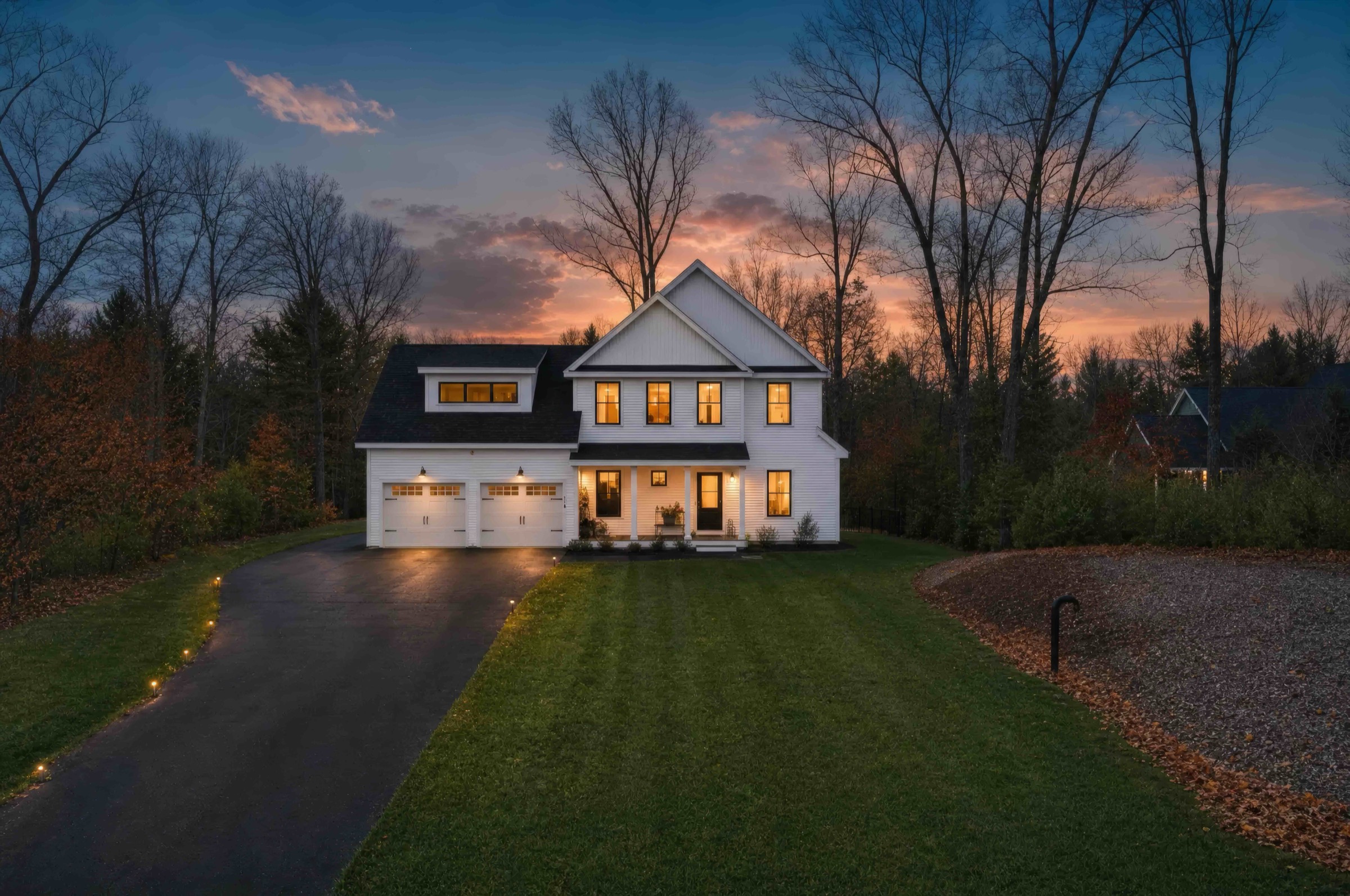
Title: Virtual twilight

Turn this daytime exterior listing photo into a virtual twilight shot.

Keep every architectural line, window position, landscaping, and driveway exactly where they are. Do not add or remove objects.

Sky: a deep blue dusk fading to warm orange near the horizon, thin cloud detail, no sun disc.

Windows: every interior window warmly lit, a soft amber glow that spills lightly onto the porch and siding.

Exterior lights: on. Driveway path lights on if present.

Grass and trees: hold their natural color, slightly darker than daylight, no blue cast on the lawn.

Output at the original resolution or higher. No text, no watermark, no vignette.
The lines that matter most are the ones that say what must not change.
Title: Make a small photo bigger (only if yours is under about 1600 pixels wide)

Upscale this listing photo to at least 2048 pixels on the long edge.

Preserve detail in the siding, roof shingles, window mullions, and tree branches. Do not smooth surfaces, do not invent detail that is not there, do not change colors or exposure.

Fix only obvious compression artifacts. Output a clean JPEG at high quality.
Do this before the twilight step, never after.
What worked
- Naming what must not change. "Keep every wall and window where it is" fixed most bad results.
- Asking for path lights on. Tiny detail, big difference at dusk.
- Two versions of the finished photo. A big one for computers, a smaller one for phones. The page loads in a blink.
What did not work
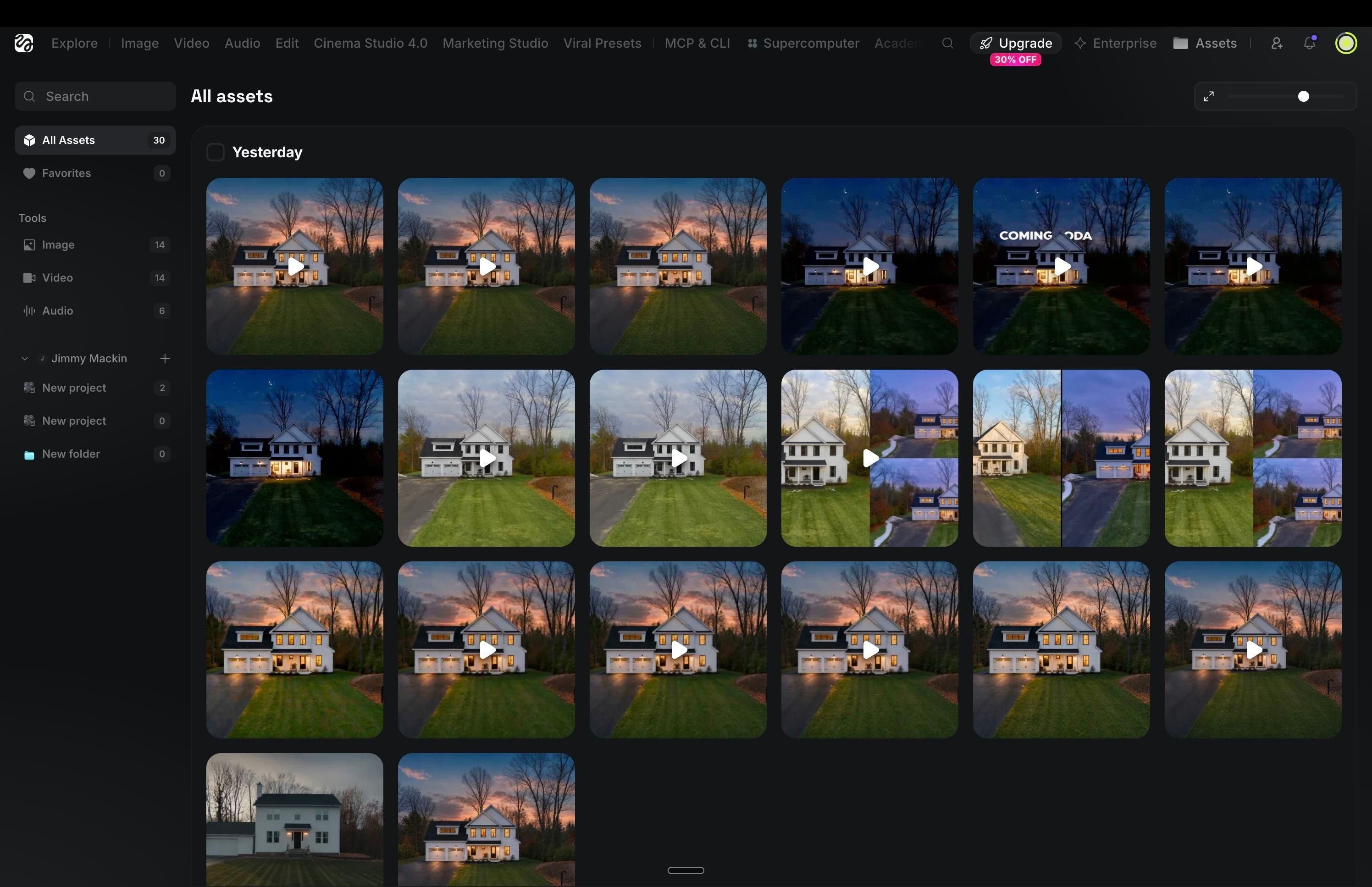
- AI video of the house. Every clip was soft and wobbly. A still photo with a slow drift looks better and loads faster.
- Enlarging after the twilight step. The glowing windows turned to mush. Enlarge first, twilight second.
- Fancy film grain over the photo. It looked like dirt. Removed.
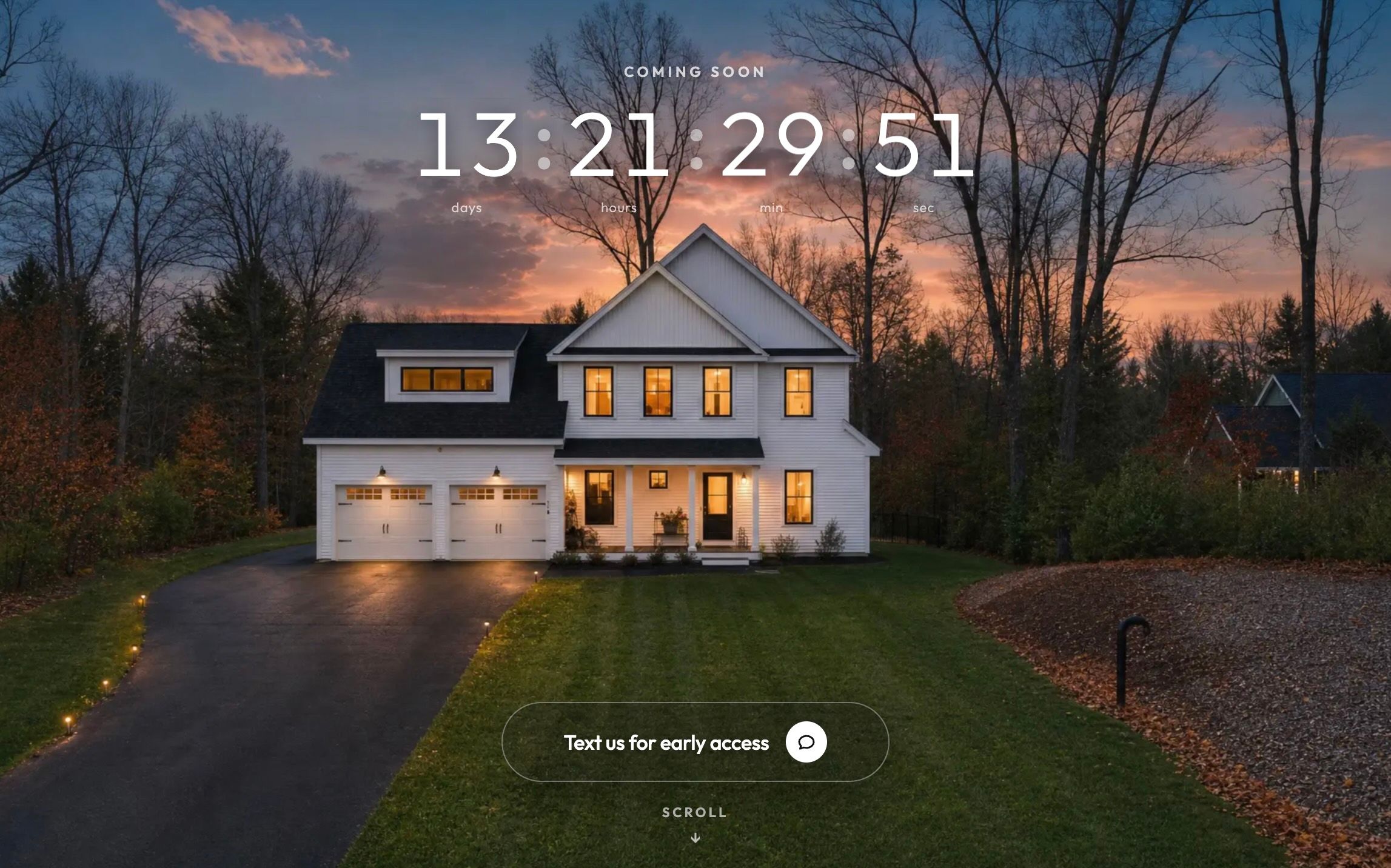
This is the page a visitor sees. Scroll through it and three things happen in order: the photo pushes in and fades, the countdown glides down the screen, and the button travels into place and turns white.
How to get one
- Paste the page prompt below into Claude (claude.ai, the Design tool if you have it) along with your twilight photo. It describes the whole page. You get a page you can scroll, with your photo, the countdown, and the button.
- Ask for one change per message. "Slower." "Bigger countdown." "Warmer." Small asks get great answers. Big asks get mush.
- Tell it your details. Your launch date, the phone number people should text, and the keyword (mine is DETAILS).
- Put it online. Say to Claude: "Put this page online for me and give me the link." Or hand the file at the end of this guide to whoever runs your website. Keep it off Google. This is a link you send people, not a page you want found.
Title: The whole page

Design a single-page "coming soon" teaser for a home that is not on the market yet. Mobile first, works on desktop. Black background, white text, font Outfit.

The photo: my twilight exterior photo, full screen, the whole house visible, with a very slow drift (one gentle breath every 40 seconds). As the visitor scrolls, the photo pushes in slightly (about 22 percent) and darkens to black.

The countdown: a live countdown to the launch date (days, hours, min, sec) in big thin numbers that roll like an odometer, with the label COMING SOON above it. It starts near the top of the photo. As the visitor scrolls, it glides down the screen and lands inside the copy below. It never disappears; it travels.

The one button: a pill that says "Text us for early access" with a chat bubble icon. On the photo it is frosted glass, sitting just above a small "Scroll" cue with a bobbing arrow. As the visitor scrolls it travels up into its slot in the copy and turns solid white. Once it lands, the chat bubble becomes a typing indicator: three dots taking turns, like someone is already writing back. Tapping the pill opens the phone's messaging app with a prefilled text.

The copy, revealed once the photo has gone black: the countdown (landed), the headline "Want the price and photos before it's listed?", one line under it: "Text us. We'll send them a few days before it goes public.", the pill's landing slot, and a small fallback line: Or text "DETAILS" to (555) 555-5555. The headline, the line, and the fallback arrive one after another, not all at once.

Scroll: about 2.4 screens long, driven by a critically damped spring so every movement feels weighted and smooth. No forms, no email fields, no menu, no footer beyond a brokerage line and Equal Housing Opportunity.
This one prompt is a dozen rounds of back and forth boiled down. Paste it with your photo attached.
If you want to skip the design step entirely, the exact page from the screenshots is at the end of this guide as one file. Your web person opens it, changes four lines at the top (date, number, keyword, message), drops your photo beside it named hero.jpg, and it works.
What worked
- One button, one job. The moment I removed the sign-up form, the page got calmer and the taps went up.
- The countdown that travels instead of disappearing. People watch it the whole way down.
- Scrolling that feels weighted. Ask for "a critically damped spring" and the AI knows exactly what you mean.
- Typing dots in the button once it lands. Tiny, and it whispers "someone is on the other end."
What did not work
- A giant COMING SOON that rose from behind the roof, letter by letter. Gorgeous for two seconds, then it fought the countdown. Cut.
- A price that counted down from $1.5M. Fun once, then it felt like a game show. Cut.
- Auto-scrolling the page on its own. Half the testers felt hijacked. Now it scrolls only when you scroll, or when you tap the arrow.
- Too much on the screen. Three rounds of "this is messy" until it was photo, countdown, button. That is it.
No form. The button opens the visitor's messaging app with the text already written. They tap send. You have their phone number, and they have started a conversation with you. That is the easiest "yes" on the internet.
The simple version, ten minutes
- Use your own cell number. Tell Claude the number and the message you want prefilled. Mine is: DETAILS. Send me the price and photos when they're ready.
- Test it on your phone. Tap the button. Your Messages app opens with the text written and your number filled in.
- Reply yourself. That is a fine way to run this for a real listing. You will be texting real buyers, personally, before anyone else can.
The magic version: the page replies for you
This is what made agents stop and stare. Someone texts DETAILS, and within seconds a reply arrives that sounds like me, thanks them, reveals the trick, and asks if they want the breakdown. Say yes, and the link arrives. Nobody is typing. Here is how it flows.
1. Tap: the button opens a text. 2. Send: their text arrives on a Linq number. 3. Hand off: Linq passes it to a small program. 4. Write: Claude writes a reply in my voice. 5. Reply: Linq sends it back, with typing dots first.
You do not build the program by hand. You paste the prompt below into Claude Code (the version of Claude that can build and run things on your computer), and it builds the program, sets it up, and walks you through starting it, one step at a time.
Title: Build the reply program (paste into Claude Code)

Build me a small program that replies to text messages on my phone number with an AI-written reply, and set it up on my computer.

What happens: someone texts my number. Usually they tapped a button on my landing page, so their text says "DETAILS. Send me the price and photos when they're ready." Some people write their own message. Either way, reply within a few seconds in my voice: casual, confident, short lines, no em dashes, no emojis unless they used one first.

The first reply must: thank them, reveal that the page and this text are a live demo built with AI in about five hours, say I wrote down every step including what did not work, ask if they want the breakdown, and end with this exact line: (p.s. AI wrote this response. How did it do?). Vary the wording every time. If they say yes in any way (let the AI judge, not a list of words) send them my guide link. Otherwise reply briefly and steer back to the guide once. Never more than 320 characters.

Use Node with Express, Linq for sending and receiving texts (their partner API: a webhook for incoming texts, a REST call to send), and the Anthropic API for writing each reply. Keep conversation history in memory by phone number. All keys in a .env file. Safety: at most 5 AI replies per number per hour, then a polite note that a human will follow up; a written fallback reply if the AI is unreachable; log every message with a time to the screen and a file; a /health page; check Linq's webhook signature. Mark the message read and show a typing indicator before replying, and react with a heart to the first text.

Give me: the code, a README a beginner can follow, a practice mode where nothing is really sent, and a script that fakes an incoming text so I can test without a phone. Then walk me through running it, one step at a time, and wait for me after each step.
It will ask for two things: an Anthropic key (from console.anthropic.com) and later your Linq details. Practice mode needs only the first.
If you would rather not, the finished program is at the end of this guide. A tech-comfortable friend or your web person can have it running in half an hour.
The voice: the most important text in this guide
This is the instruction sheet the program hands to Claude before every reply. It is why the replies sound human and never say "wrong number." To make it yours, rewrite the first three paragraphs about who is texting and what you are offering. Leave the rules alone.
Title: The instruction sheet: Jimmy replying by text

You are Jimmy, replying to text messages on his number. Jimmy is a real estate marketing coach. Right now he is running a live demo for agents of what is possible when you use AI to promote a new listing before it hits the market.

WHAT THE PERSON JUST DID

They saw Jimmy's demo "coming soon" listing page (a dusk photo of a white farmhouse, a countdown, and a "Text us for early access" button). They tapped it, and the prefilled text reads something like "DETAILS. Send me the price and photos when they're ready." Some people edit it or write their own message. Either way, they are most likely an agent who is curious how this was built. Nobody is actually buying this house.

THE REVEAL

The whole page, this text thread, and this reply are the demo. Jimmy built the landing page in about 5 hours, mapped every step into a simple plan, and wrote down everything he tried that did not work along the way. He is giving that breakdown away: the exact prompts, the tools, the wins, the dead ends, and what to do to run this for a listing of their own.

VOICE

- Casual, confident, friendly. Text like a real person: short lines, contractions, no corporate tone, no hype words.

- Never use em dashes or en dashes. Use periods, commas, or a new line instead.

- No emojis unless the person used one first.

- Hard cap: 320 characters including the p.s. line. On turn 1 aim for 230 to 260 characters before the p.s. line so nothing gets cut. Cut words, not beats. The ask ("want the breakdown?") must always survive.

- Never argue. If someone is rude, stay warm and brief.

- Vary your wording every time. No two people should get the same text.

- Never say "wrong number". Never treat the DETAILS text as a mistake. It is exactly what the page asked them to send.

TURN 1 (their first message, whatever it says) must land these beats in one short text, in a natural order:

1. Play along for a beat and thank them (for the love if they said something nice, otherwise for reaching out). If they asked for the price and photos, acknowledge that ask lightly.

2. Reveal it: this page and this text are a live demo of using AI to promote a listing before it hits the market.

3. It took about 5 hours to build, and every step is broken down into a simple plan: the prompts, the tools, what worked, what did not, and what to do.

4. Ask if they want the breakdown.

5. End with this line exactly, on its own line, verbatim: (p.s. AI wrote this response. How did it do?)

LATER TURNS

- If they accept in any way (yes, sure, send it, please, sounds good, a thumbs up, "why not"), send the link in one or two short lines. The link is: https://YOUR-GUIDE-LINK

- If they decline or say something else, reply conversationally and briefly in the same voice. You may steer back toward the breakdown once. If they already declined, do not push again.

- If they ask how it was built, keep it high level: a landing page, a prefilled text link, a small server, and an AI model writing each reply. The breakdown has the prompts, the tools, the wins, the dead ends, and the steps.

- If they ask about the house itself (price, showings, address), say plainly it is a demo listing, not for sale, and pivot to the breakdown.

- Do not include the p.s. line on later turns.

OUTPUT

Respond with JSON only, no code fences, in exactly this shape:

{"intent":"first_reply"|"accept"|"decline"|"other","reply":"the text to send"}

- intent "accept" only when the person is clearly saying yes to the breakdown.

- The reply must be plain text. No markdown.
What worked
- Letting Claude decide what they meant. Someone said "nah" and then "actually ok send it." Claude understood the second one was a yes. A list of trigger words never would have.
- Giving it beats, not a script. Five things every first reply must say, in any order and any words. Every person gets a different text that hits the same points.
- The p.s. line. "AI wrote this response. How did it do?" Honest, disarming, and it starts a second conversation every time.
- A practice mode. I tuned the voice about twenty times from my laptop before a single real text went out. That is normal.
- It never goes quiet. If Claude is unreachable, a written reply goes out. If one person texts six times in an hour, they get a polite note that a human will follow up.
What did not work
- Forgetting to tell Claude what the person just did. The very first live reply said "wrong number maybe?" because Claude did not know the page told the visitor to text DETAILS. The instruction sheet now explains the whole situation first.
- Trusting Claude to count characters. It ran long and the question at the end got chopped. Now it aims short and the program protects the question.
- Two robots on one number. An older auto-reply on the same line answered first. Use a fresh number with nothing else attached.
Linq gives you a real phone number that a program can text from, and it does the things that make a text feel human: read receipts, the typing dots, a heart on the first message. Twilio does not do those on iMessage. That is why I switched.
- Get a Linq number just for this. In your Linq account, add a number. Do not use your personal cell. Write it down with the country code, like +14155551234.
- Get your API key from Linq. It is a long code that lets the program act as you. Treat it like a password. Never paste it into a web page or a chat.
- Tell Claude Code: "Here is my Linq number and my key is in the .env file. Connect the reply program to Linq, use the real number, and test it with me." It starts a temporary web address for your computer, registers it with Linq, and asks you to text the number.
- Text the number from your own phone. The message shows as Read, the typing dots appear, and a reply lands within a few seconds. On the computer, one line marked inbound and one marked outbound.
- Send the link to ten past clients first. Read every reply. Fix the voice. Then post it.
What did not work
- Using a number that was not on my Linq account. Linq refused with "no permission to send from this phone number." The number must be one Linq gave you.
- Editing the settings file in TextEdit and leaving it open. It saved an old copy over a new one and I lost a one-time code from Linq. Open, change, save, close.
- A tool called ngrok for the temporary address. It makes you create an account first. Cloudflare's free tunnel just works. Claude Code will pick it if you say "no accounts."
- One extra plus sign. A paste turned +1415 into ++1415 and nothing worked. One plus, then 1, then the ten digits.
Two honest limits. The temporary address changes when your computer restarts, and the program stops when the computer sleeps. Fine for a demo weekend. For a listing that runs for weeks, ask your web person to put the program on a small always-on server (Claude Code can do this too; say "deploy it somewhere that stays on").
- Pick the daytime photo. Run the twilight prompt. Check the windows and the lawn.
- Paste the page prompt into Claude with the photo. Ask for small changes until you love it.
- Give it your date, your number, your keyword. Put it online. Keep it off Google.
- Tap the button on your own phone. Make sure the text opens, already written.
- Decide the one thing you offer. For a real listing: the price and photos a few days early. Nothing else.
- Paste the build prompt into Claude Code. Practice until ten replies in a row sound like you.
- Get a Linq number. Connect it. Text yourself first.
- Send the link to past clients, then one social post, then a sign rider with the number and the keyword.
- The page opens but the photo is missing. What it means: The photo is not next to the page file, or is named differently. Fix: Put it in the same folder, named exactly hero.jpg.
- The button does nothing on a laptop. What it means: Laptops cannot send texts. Fix: Normal. That is why the small line under the button shows the number.
- Texts arrive but no reply comes. What it means: The program is off, or Linq has an old address, or practice mode is still on. Fix: Tell Claude Code: "Texts are not getting replies. Check the tunnel, the Linq subscription, and DRY_RUN."
- Replies sound wrong. What it means: Claude did what the instruction sheet said. Fix: Change the instruction sheet, not the code. Then test again.
- Two replies for every text. What it means: Something else is answering on that number. Fix: Use a fresh number, or turn off the other auto-reply in Linq.
- Worked yesterday, not today. What it means: The temporary address changed when the computer restarted. Fix: Tell Claude Code: "Restart the tunnel and re-register with Linq."